> ## Documentation Index
> Fetch the complete documentation index at: https://ilovecoffee.compute.exchange/docs/llms.txt
> Use this file to discover all available pages before exploring further.
# Managing Asks
As a provider, the Orders Dashboard allows you to manage your Asks and see the progress of the auctions.
To see your asks in the Orders Dashboard, click on the **Asks** tab.
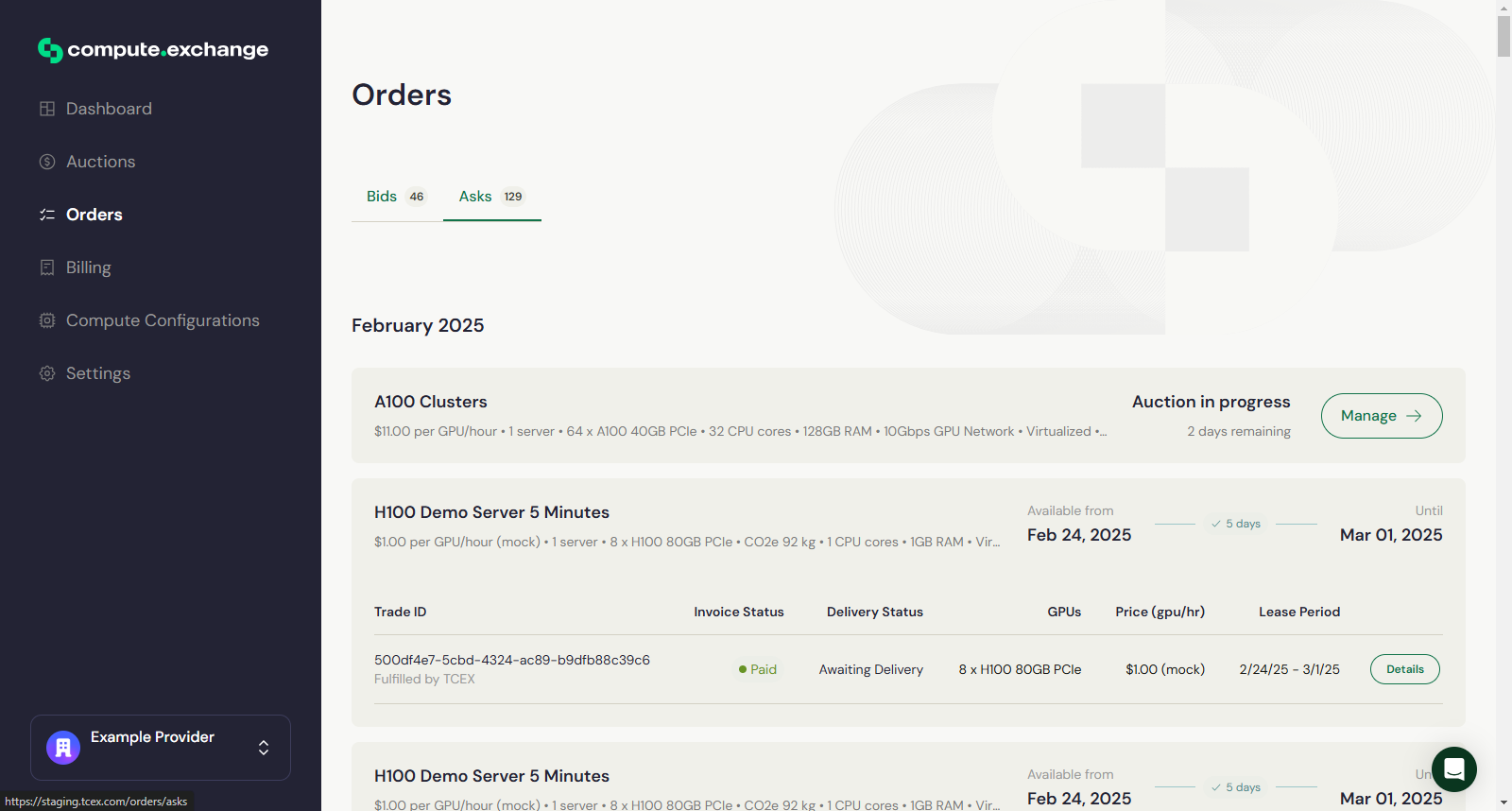 From there, you can:
* Edit your Ask
* Cancel your Ask
## Update Asking Price
To change your asking price, Follow the steps below:
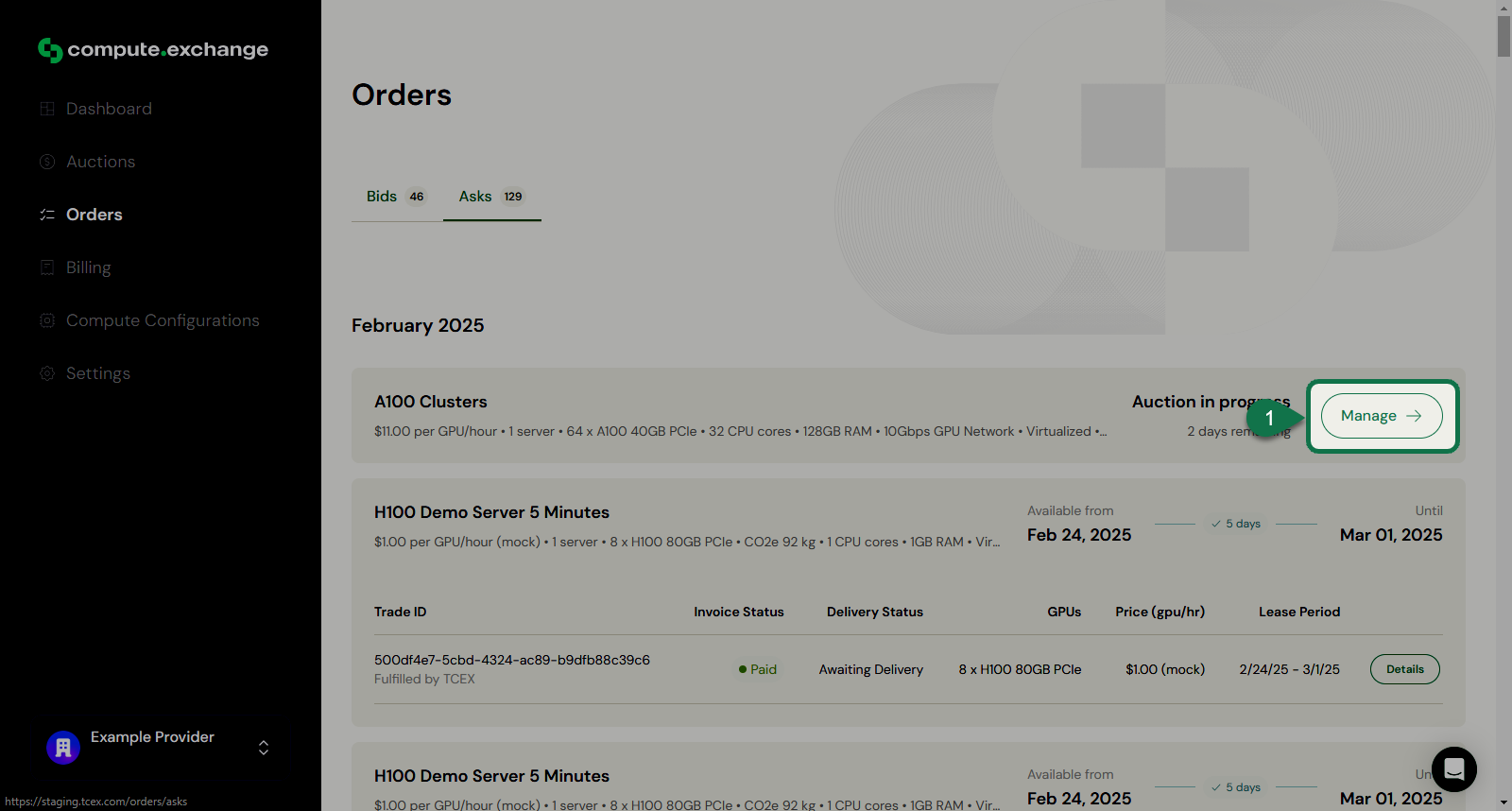
1. from the **Ask** tab, click **Manage** on your desired Ask.
From there, you can:
* Edit your Ask
* Cancel your Ask
## Update Asking Price
To change your asking price, Follow the steps below:
1. from the **Ask** tab, click **Manage** on your desired Ask.
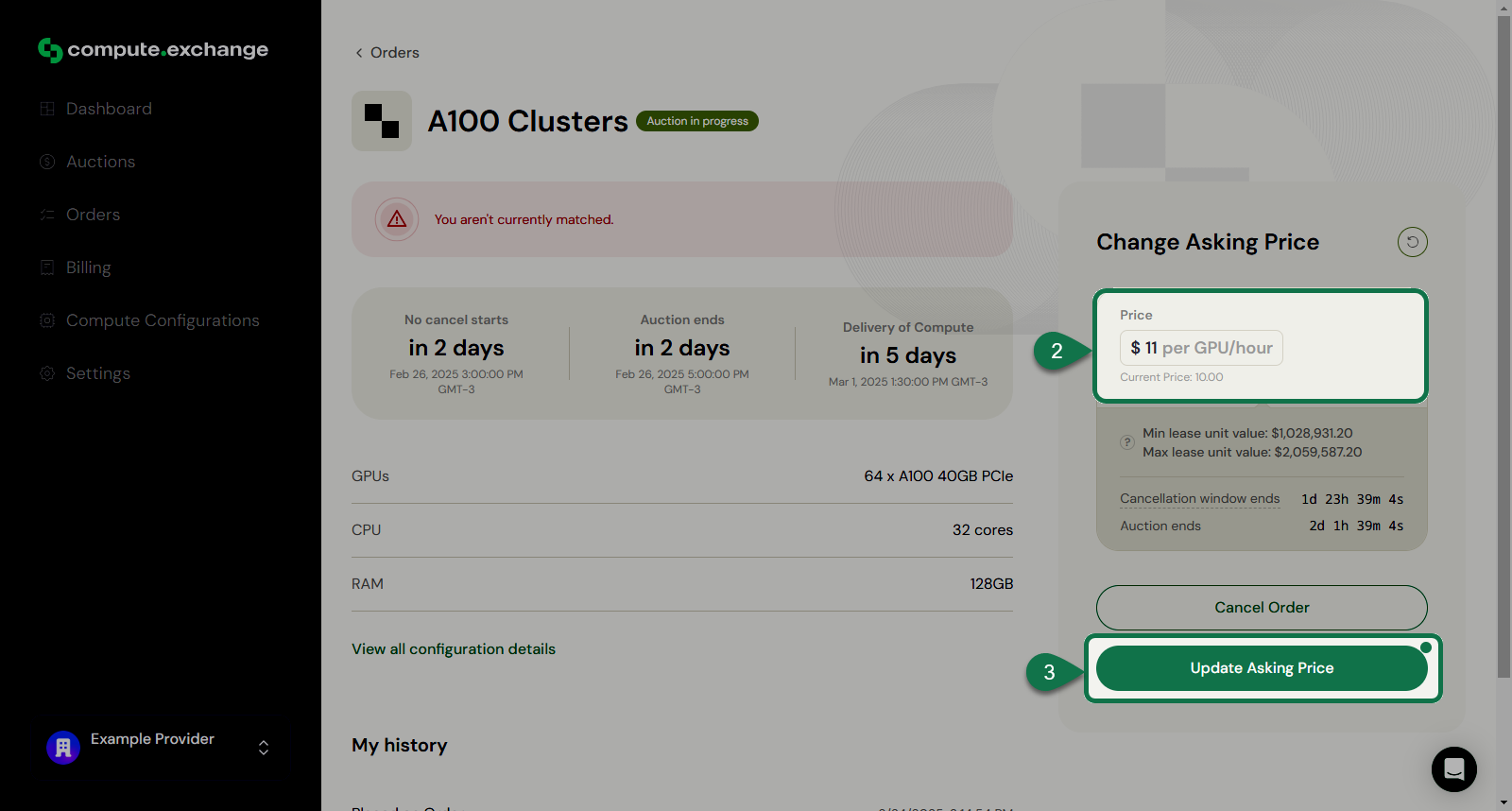
 2. Change the asking price.
3. Click **Update Asking Price**.
2. Change the asking price.
3. Click **Update Asking Price**.
 A notification will pop up confirming the update of the asking price.
## Cancelling your ask
To cancel your Ask, fFollow the steps below:
1. from the Ask tab, click Edit on your desired Ask.
2. Click **Cancel Order**.
A notification will pop up confirming the update of the asking price.
## Cancelling your ask
To cancel your Ask, fFollow the steps below:
1. from the Ask tab, click Edit on your desired Ask.
2. Click **Cancel Order**.
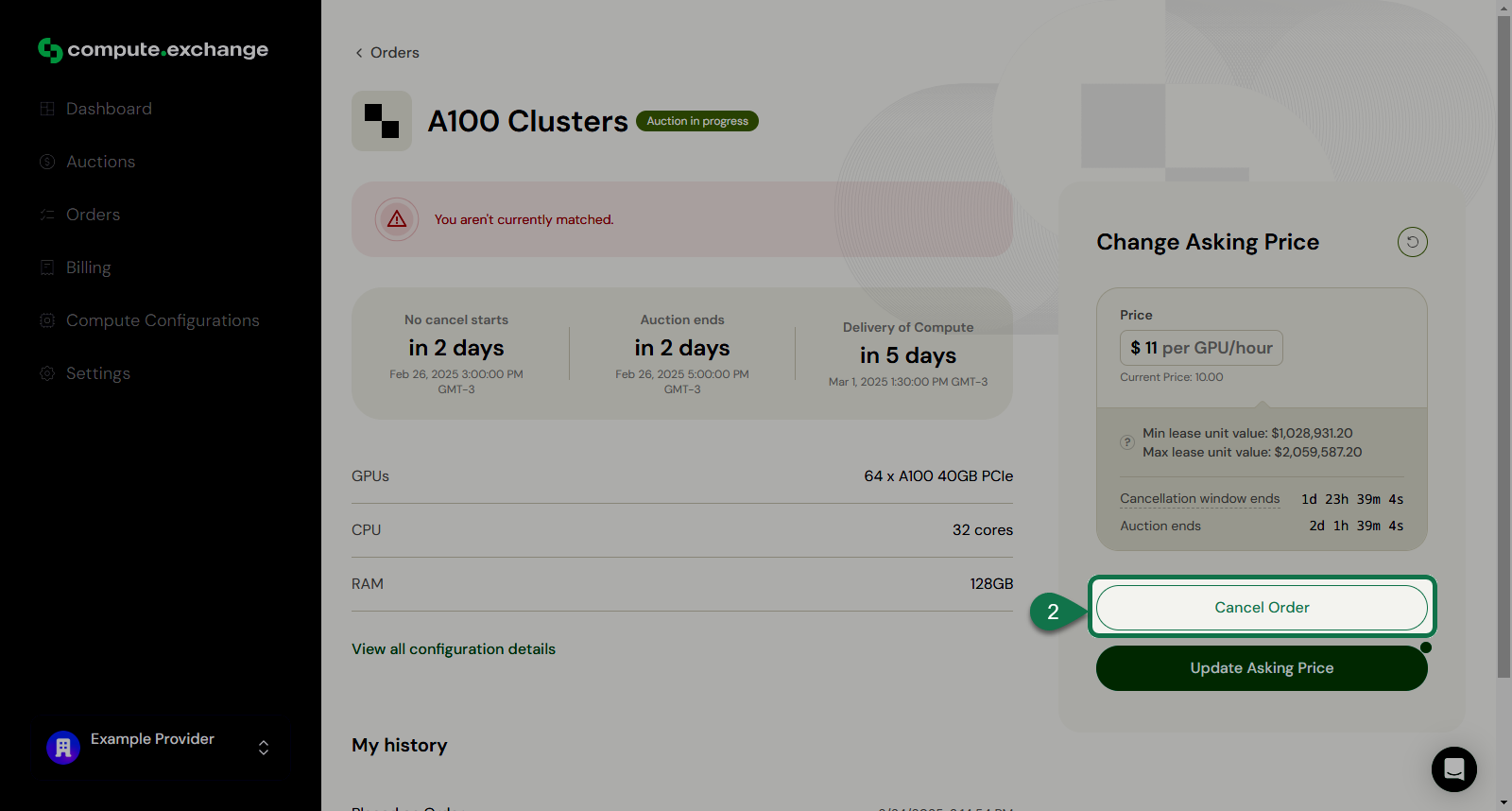 3. Click **Confirm Cancel**.
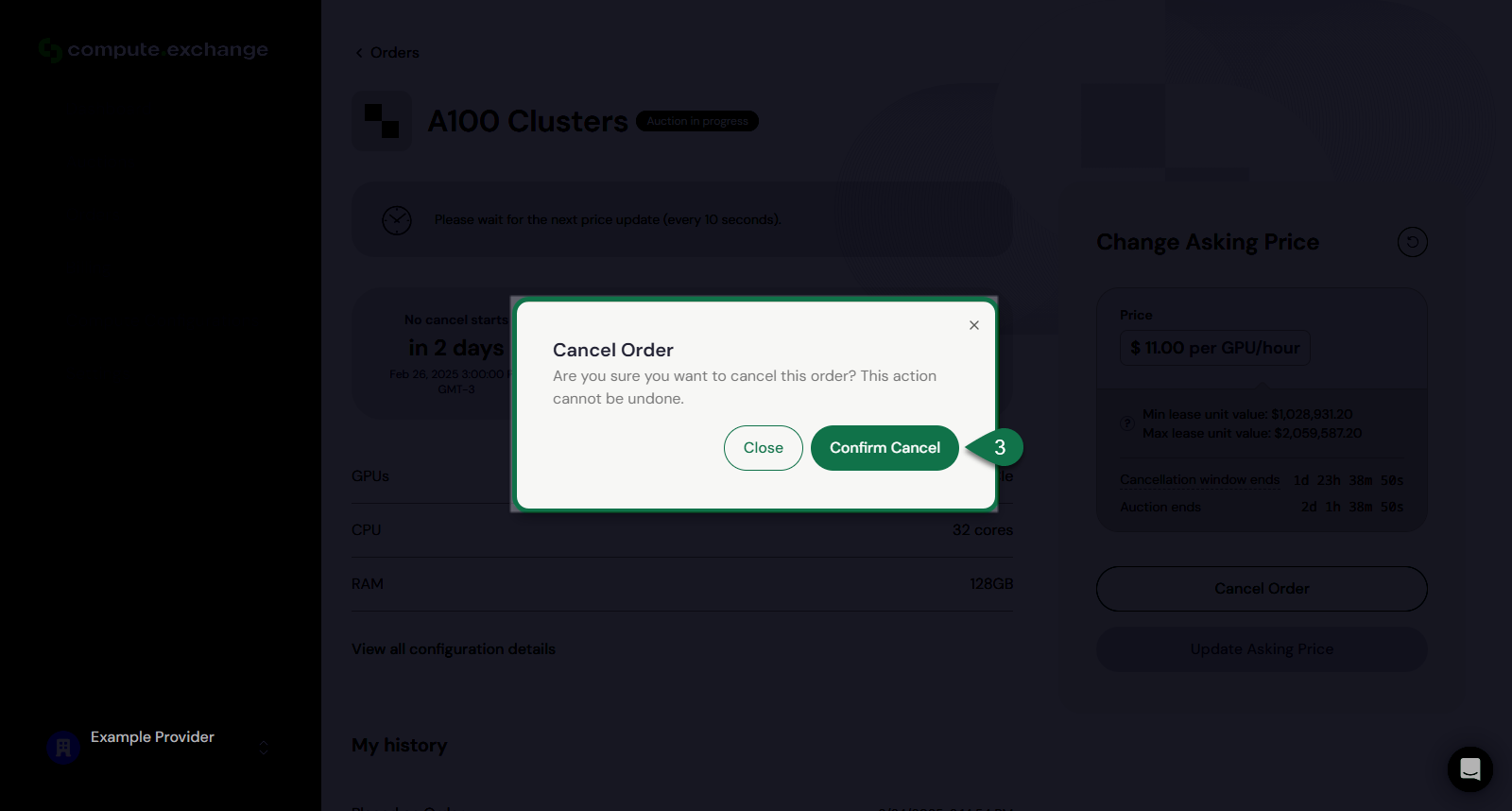 A notification will pop up confirming that the Ask was cancelled.