> ## Documentation Index
> Fetch the complete documentation index at: https://ilovecoffee.compute.exchange/docs/llms.txt
> Use this file to discover all available pages before exploring further.
# Creating an Ask
As a provider, you have complete control over setting prices for one or multiple instruments on Compute Exchange. This guide walks you through the steps to create an Ask efficiently. This process consists of the following steps:
1. Create a new Ask
2. Add your resources configuration
3. Set a price and place your Ask
## Step 1: Creating an Ask
Start by accessing the Ask creation page, follow the steps below to do so:
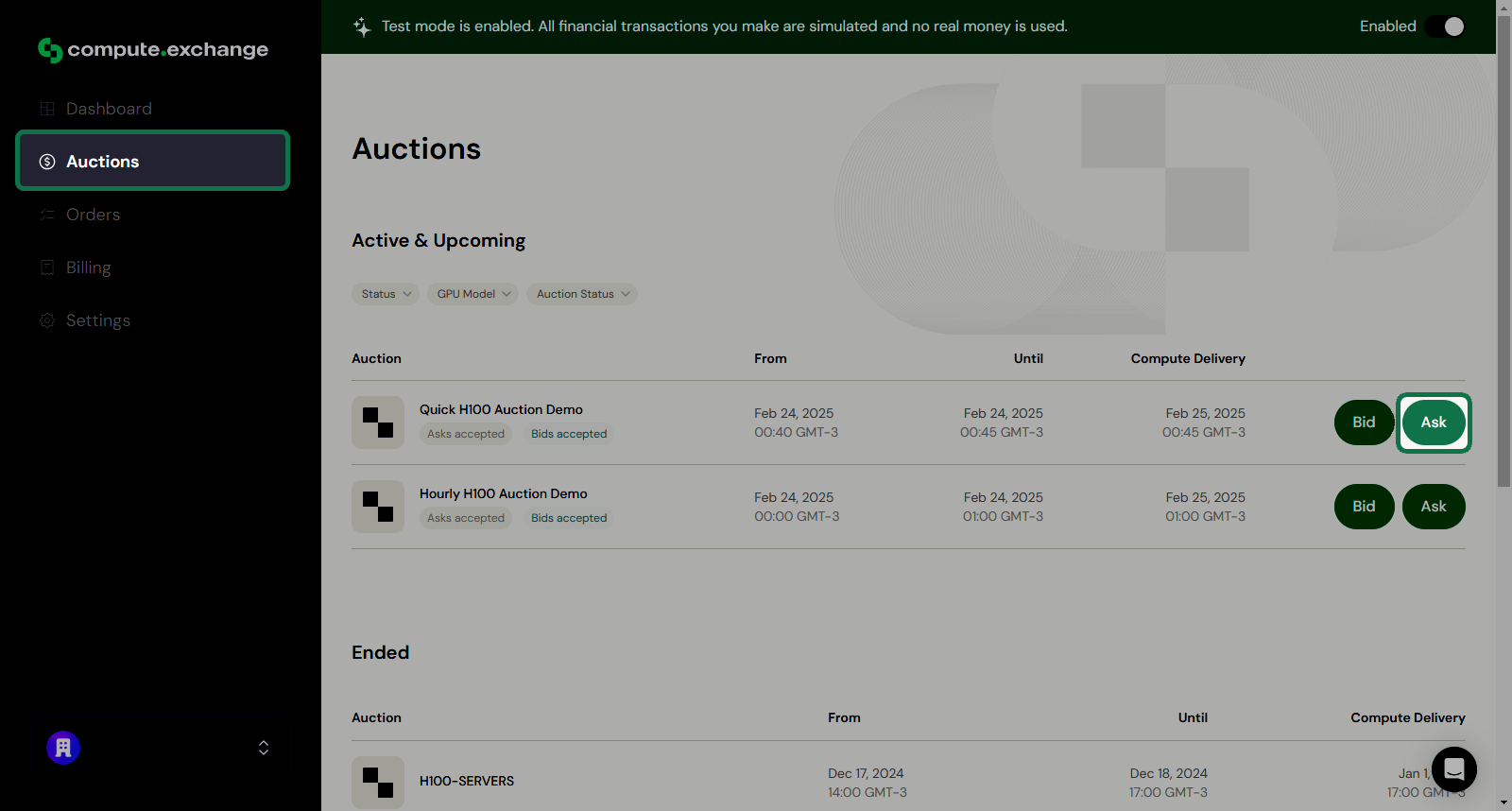
1. Access the Auctions menu.
2. On the desired auction, click **Ask**.
 3. You can choose to configure a price for a single instrument or multiple instruments at once (**Bulk Add**).
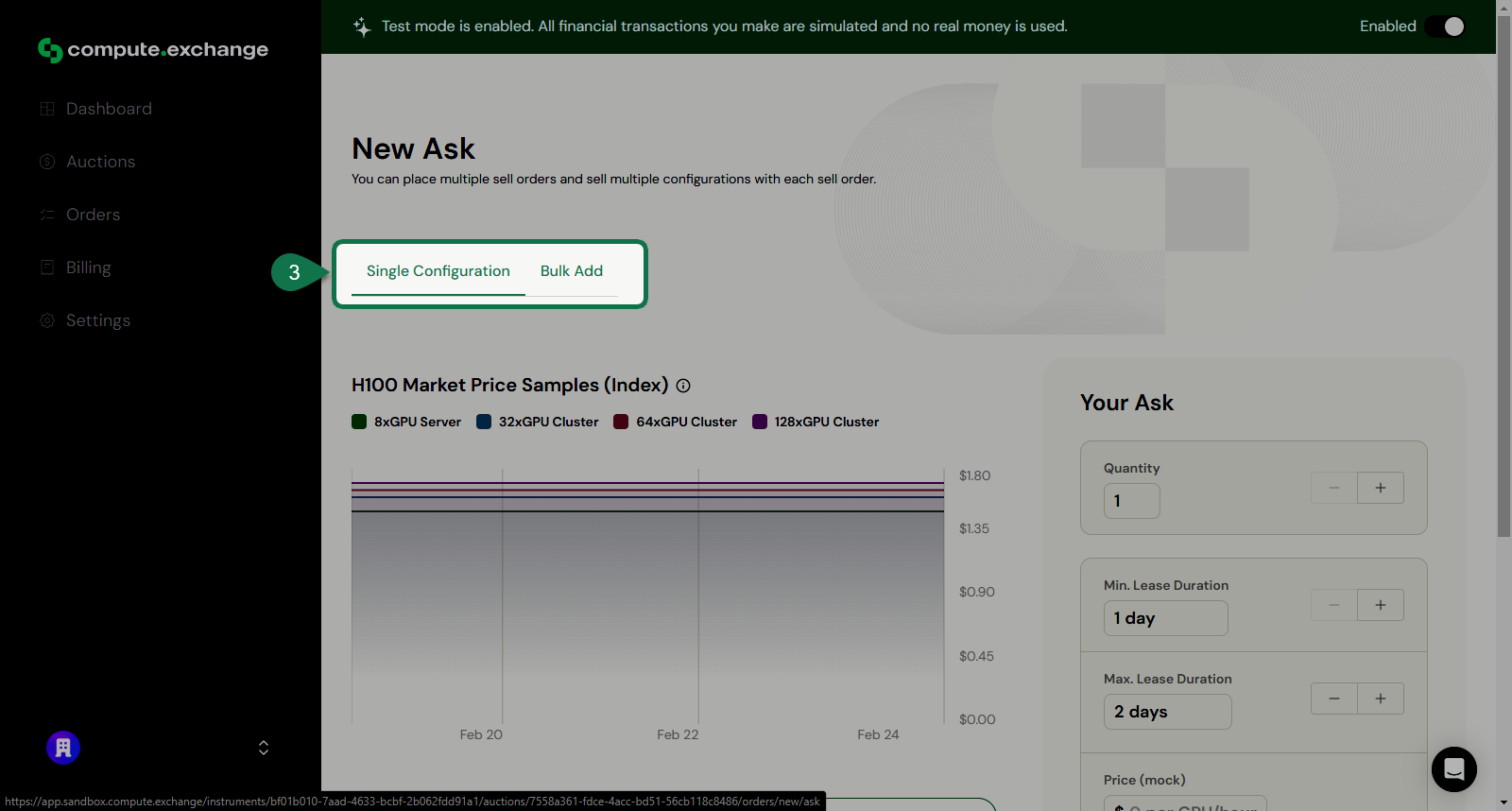 See [Handling multiple instruments](./multi-instrument-trading.mdx) to learn how to use the **Bulk Add** feature.
## Step 2: Adding a Configuration
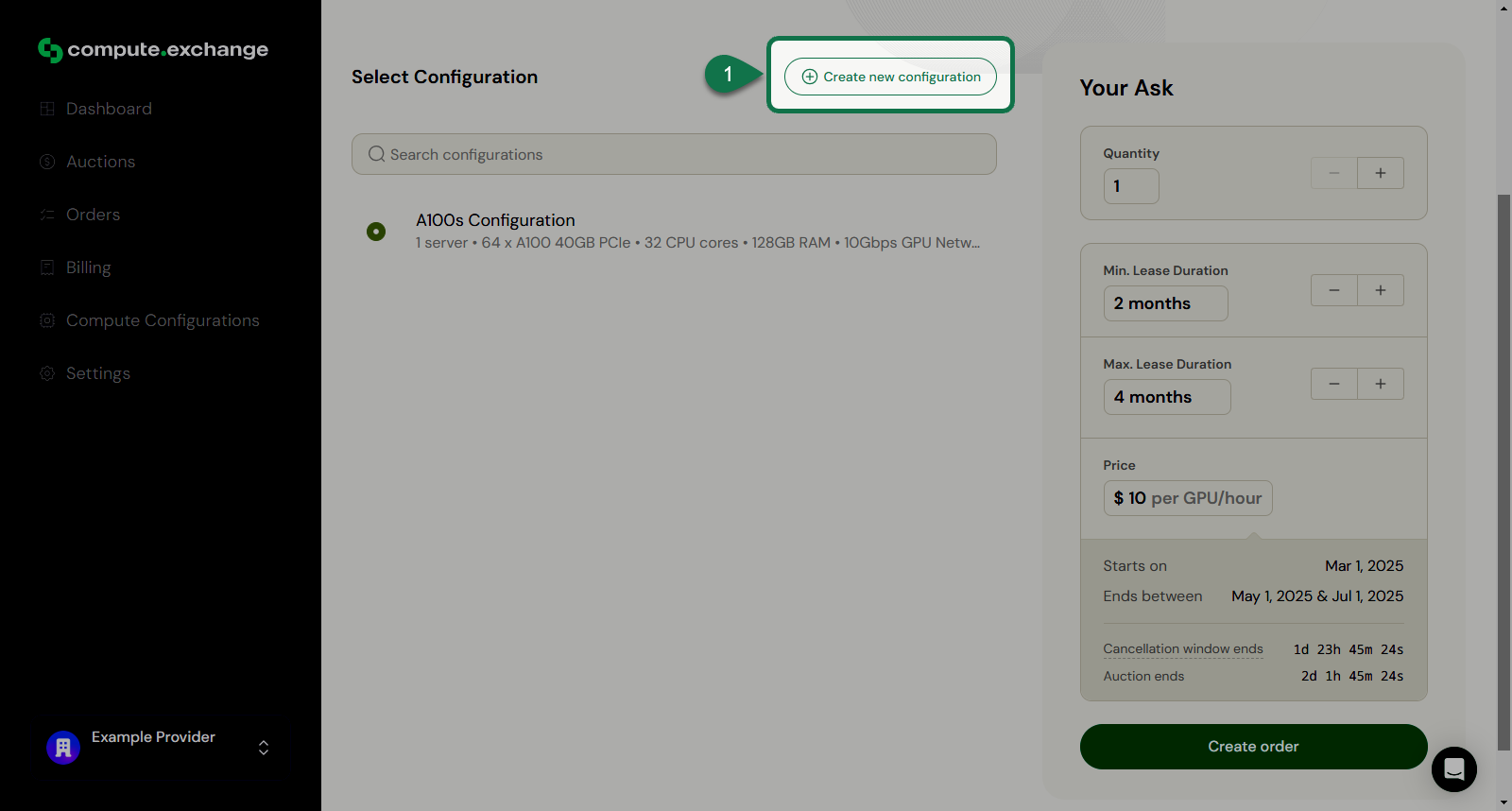
Now, you need to add the configuration of your compute resources to the request. You can select one from your list of configurations or follow the steps below to create a new one.
1. Click **Create new Configuration**
See [Handling multiple instruments](./multi-instrument-trading.mdx) to learn how to use the **Bulk Add** feature.
## Step 2: Adding a Configuration
Now, you need to add the configuration of your compute resources to the request. You can select one from your list of configurations or follow the steps below to create a new one.
1. Click **Create new Configuration**
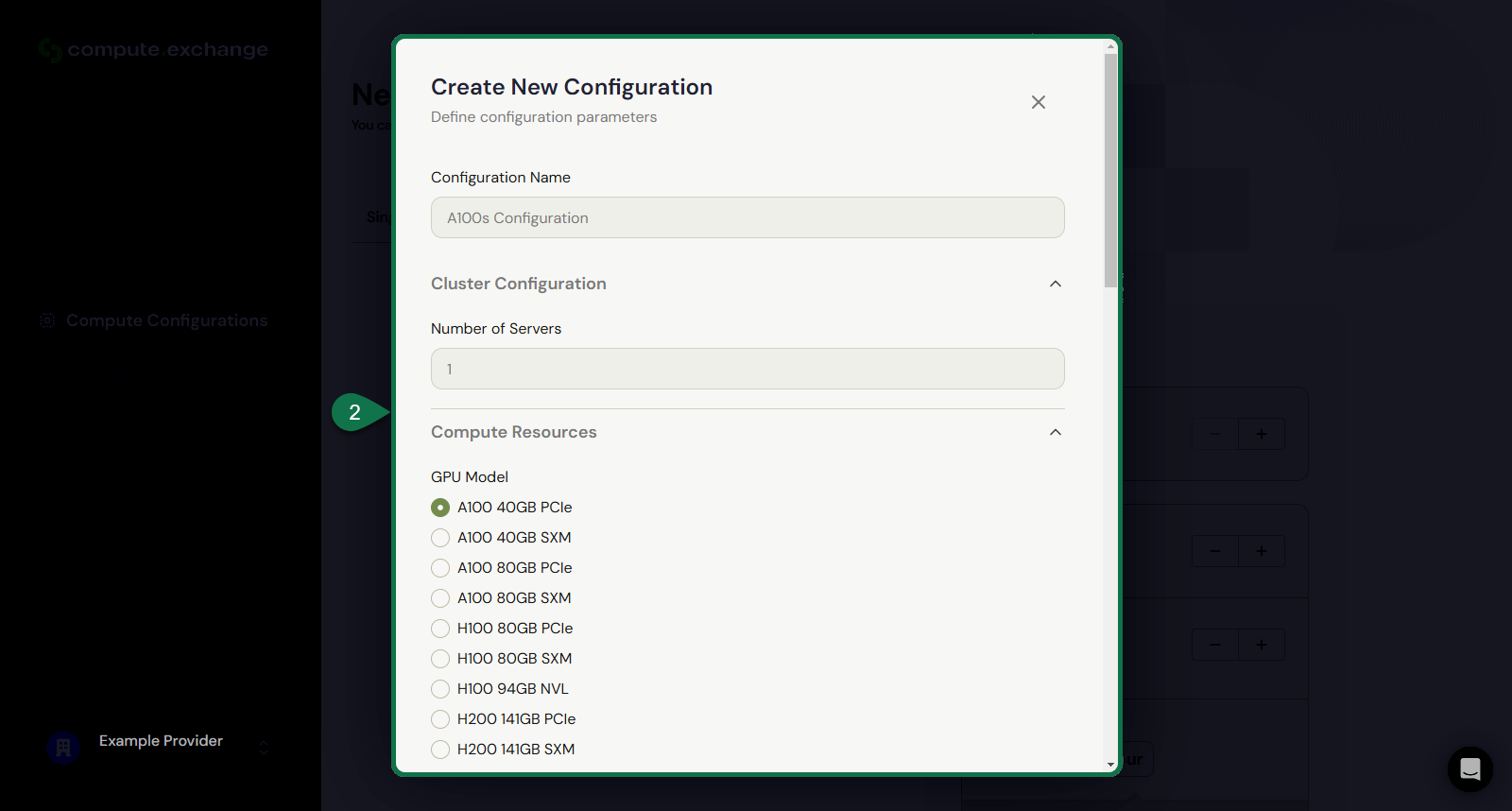
 2. A window will pop up where you can specify the configurations of the resources, such as:
* Number of servers
* GPU model
* Number of GPUs per server
* Number of CPU cores per server
2. A window will pop up where you can specify the configurations of the resources, such as:
* Number of servers
* GPU model
* Number of GPUs per server
* Number of CPU cores per server
 3. Once you've finished the configuration, click **Create** and select it from the list.
## Step 3: Pricing and placing your ask
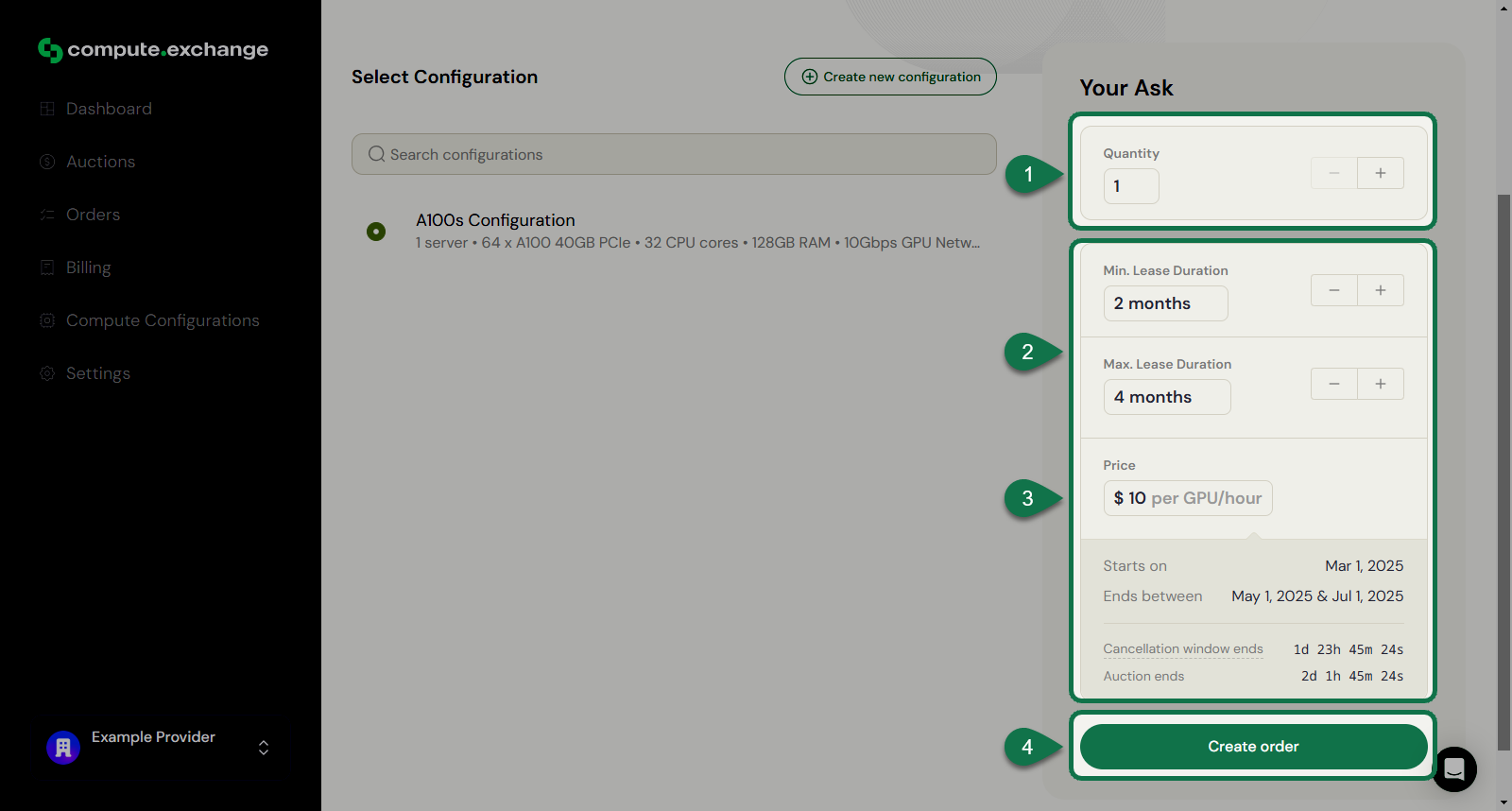
Now, in the **Your Ask** section, you need to define the price and lease time for your offer.
1. Define the quantity of **Asks** to create.
2. Set the minimum and maximum lease time.
3. Set the price of your ask (per GPU per hour).
4. Once finished, click **Create Order**.
3. Once you've finished the configuration, click **Create** and select it from the list.
## Step 3: Pricing and placing your ask
Now, in the **Your Ask** section, you need to define the price and lease time for your offer.
1. Define the quantity of **Asks** to create.
2. Set the minimum and maximum lease time.
3. Set the price of your ask (per GPU per hour).
4. Once finished, click **Create Order**.
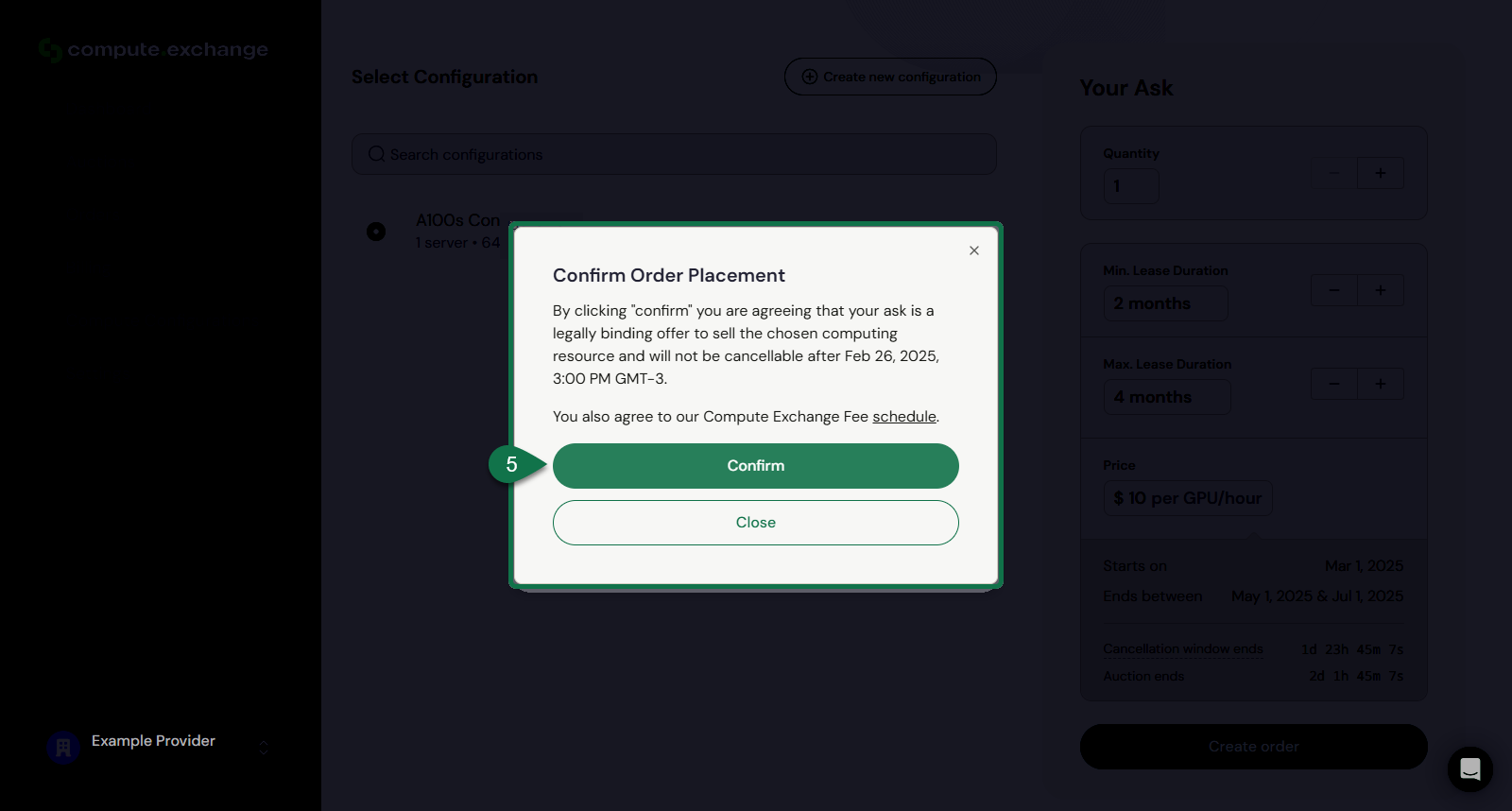
 5. A confirmation window will appear, outlining the legally binding nature of the ask. Click **Confirm** to finalize your submission.
 ## Tracking Your Bid
After submitting your request, you will be redirected to the Orders Dashboard. See [**Managing Your Asks**](./manage-asks) to learn how to edit or cancel your Ask.
## Tracking Your Bid
After submitting your request, you will be redirected to the Orders Dashboard. See [**Managing Your Asks**](./manage-asks) to learn how to edit or cancel your Ask.