> ## Documentation Index
> Fetch the complete documentation index at: https://ilovecoffee.compute.exchange/docs/llms.txt
> Use this file to discover all available pages before exploring further.
# Receiving Your Compute
After winning a bid you need to connect a **Cloud Provider** account so your compute resources can be provisioned. There are two ways to do so in Compute Exchange:
Add from the Orders Dashboard
Add from the Settings Menu
## Add from the Orders Dashboard
Follow these steps to do so:
1. Head over to the **Orders Dashboard**.
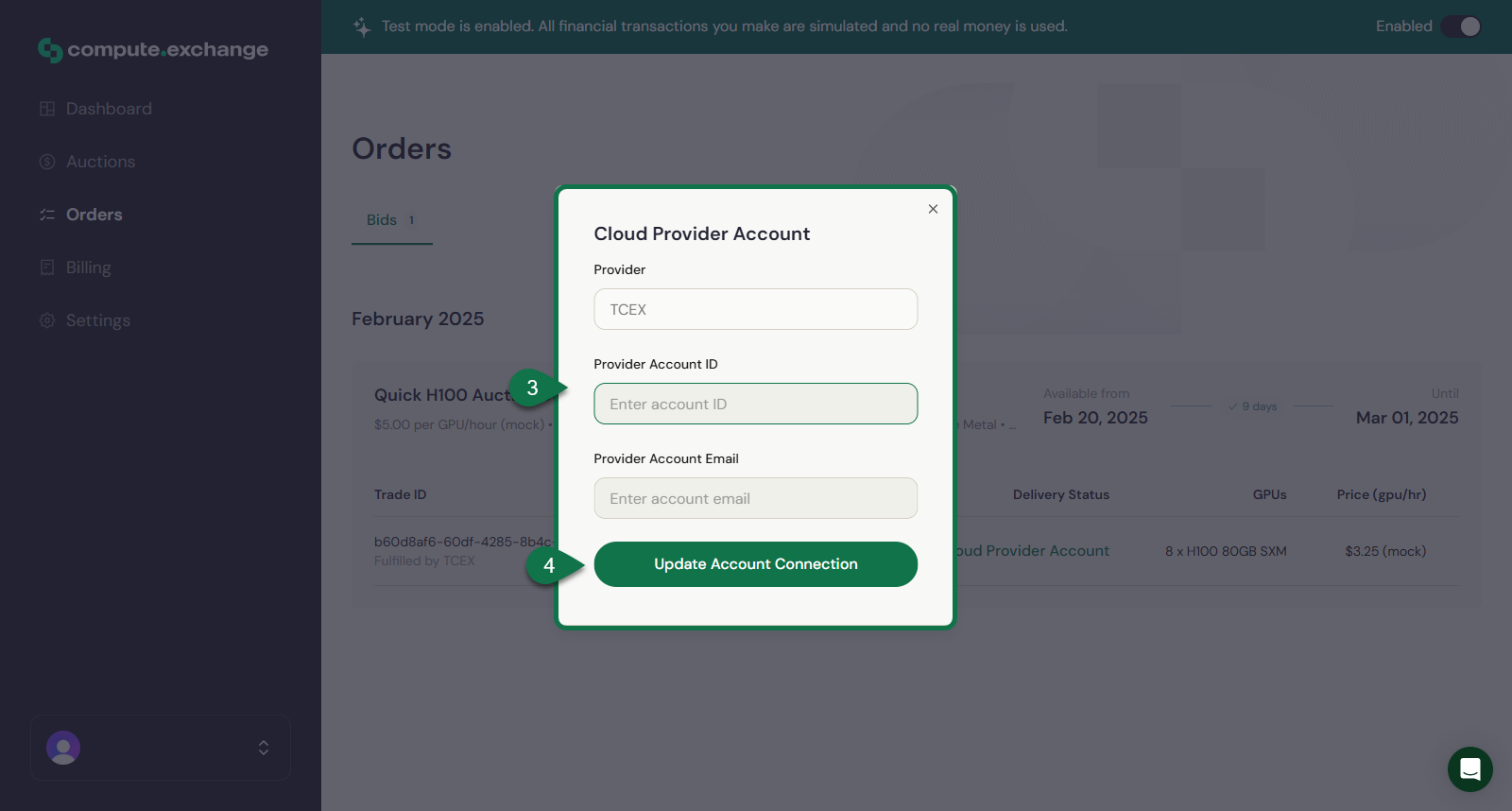
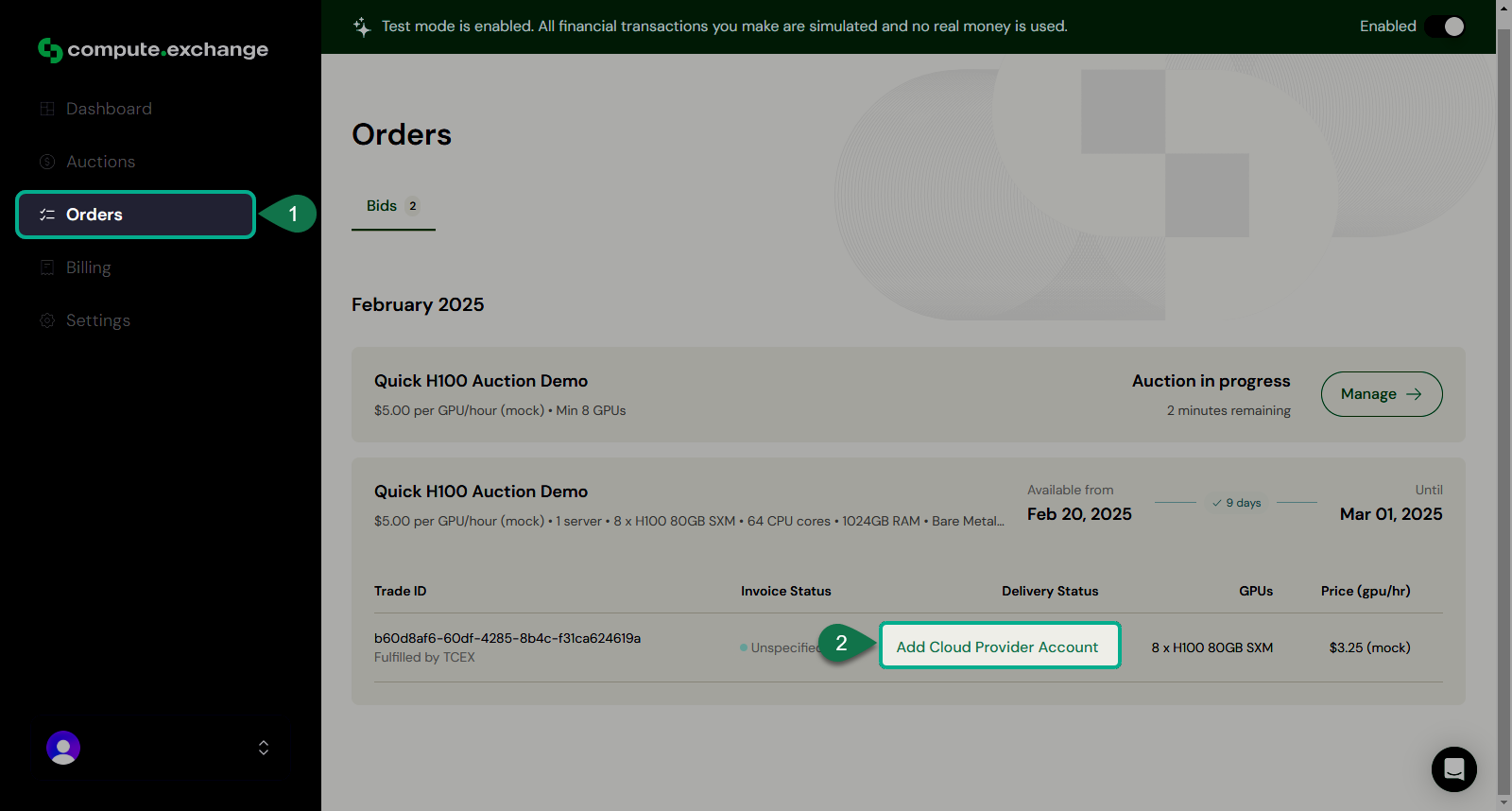 2. A window will pop-up where you need to provide the following information:
* Provider Name (e.g., Cloud Provider A)
* Account ID
* Account Email
3. Note: these are your ID, email at the specific **Cloud Provider**. If you do not have one, you need to set one up.
4. Click **Update Account Connection** to finalize the setup.
2. A window will pop-up where you need to provide the following information:
* Provider Name (e.g., Cloud Provider A)
* Account ID
* Account Email
3. Note: these are your ID, email at the specific **Cloud Provider**. If you do not have one, you need to set one up.
4. Click **Update Account Connection** to finalize the setup.
 ## Add from the Settings menu
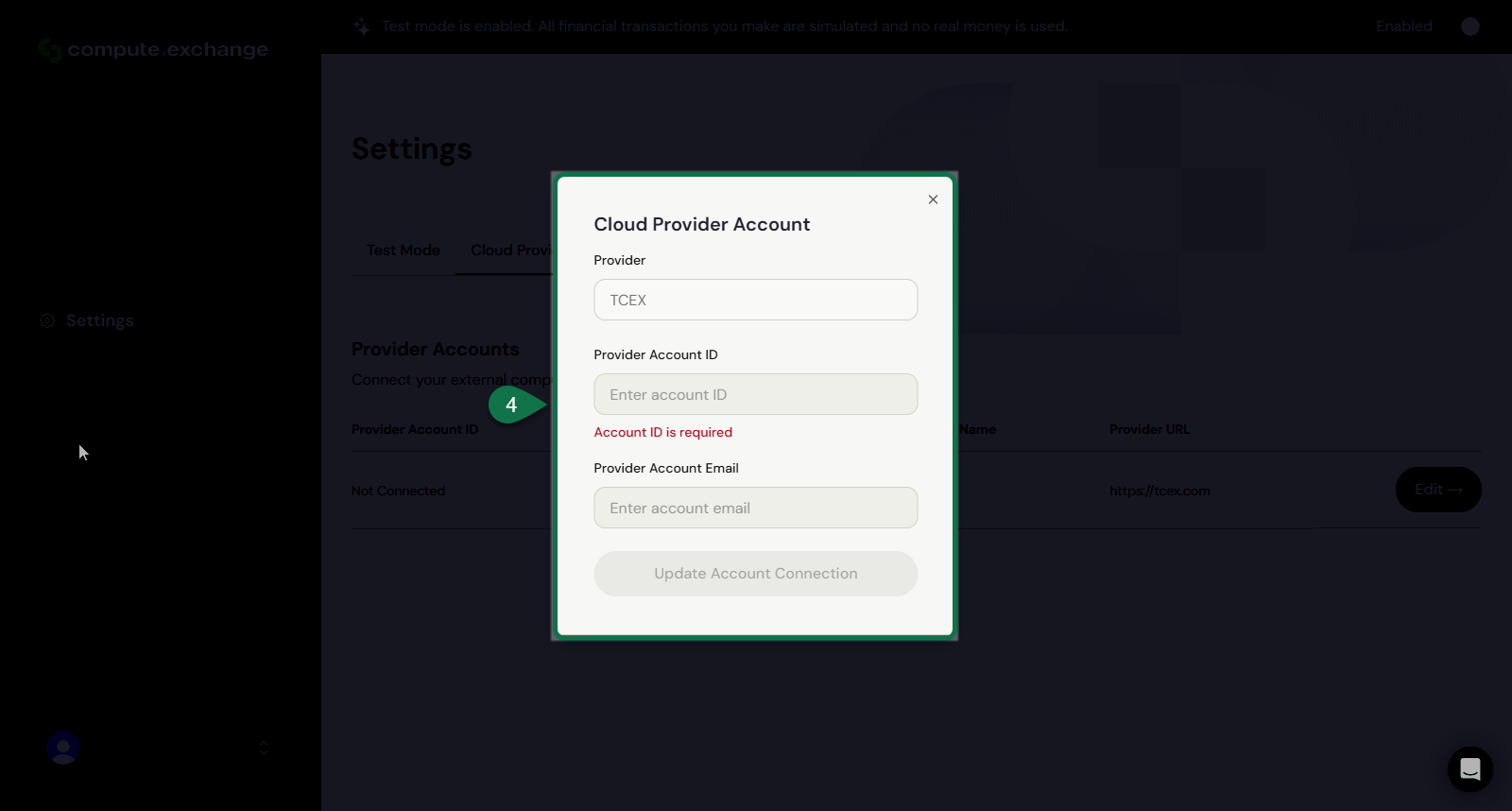
You can also add a **Cloud Provider** from the **Settings** menu, follow the steps below to do so:
1. Go to the **Settings** menu.
2. Open the **Cloud Provider Accounts** tab.
3. Click **Edit**.
4. Fill in the Cloud Provider information.
5. Click **Update Account Connection**.
## Add from the Settings menu
You can also add a **Cloud Provider** from the **Settings** menu, follow the steps below to do so:
1. Go to the **Settings** menu.
2. Open the **Cloud Provider Accounts** tab.
3. Click **Edit**.
4. Fill in the Cloud Provider information.
5. Click **Update Account Connection**.